Exporting
In this chapter we’ll look at how to convert sub-volumes of 3D Zarr images to other file formats. The use case for this is allow users to extract sub-volumes of large 3D images into a preferred file format, perform some analysis/processing on the sub-volume using their preferred tools and then copy the results back in-place to the original Zarr image.
Note: This process is more complex for OME-Zarr images that have a series of different resolution levels. When writing the processed sub-volume back to the OME-Zarr image, you will need to ensure that the resolution levels are updated correctly.
Converting Zarr sub-volumes to TIFF
To begin this chapter, we’ll look at how to convert Zarr sub-volumes to TIFF.
To start with we’ll load our heart sample dataset, as a Zarr array and then extract a smaller volume as a NumPy array.
Note: the heart sample dataset is only 200MB, so the entire dataset could be extracted into a NumPy array (and therefore loaded into memory) if required. If you are working with larger datasets, you will need to keep the extracted volume small enough to fit into memory, or extract it as a series of smaller chunks. If you are using an in-memory Zarr store, then the entire dataset will be loaded into memory regardless of the size of the sub-volume you extract.
from pathlib import Path
import zarr
import numpy as np

from data_helpers import load_heart_data, plot_slice

zarr_array = load_heart_data(array_type="zarr")

n_bytes = zarr_array.nbytes
n_mb = n_bytes / (10**6)

print(f"Zarr array store: {zarr_array.store}")
print(f"Zarr array shape: {zarr_array.shape}")
print(f"Zarr array dtype: {zarr_array.dtype}")
print(f"Zarr array chunks: {zarr_array.chunks}")
print(f"Zarr array size: {n_mb:.3f} MB")
Zarr array store: <zarr.storage.DirectoryStore object at 0x70da802bf4d0>
Zarr array shape: (120, 120, 139)
Zarr array dtype: uint8
Zarr array chunks: (64, 64, 64)
Zarr array size: 2.002 MB
The output above shows that we have created a Zarr array object, but importantly, the data itself has not been loaded into memory yet. The store information tells us that the data is stored in a Zarr storage backend - with each chunk stored as a separate file on disk rather than in memory. This lazy loading approach is one of the key advantages of Zarr - you can work with arrays much larger than your available RAM.
Now let’s extract a small sub-volume from the Zarr array. This operation will only load the requested slice into memory as a NumPy array, leaving the rest of the data untouched:
start_idx = 40
end_idx = 50
slice_range = slice(start_idx, end_idx)
np_array = zarr_array[slice_range, slice_range, slice_range]
n_bytes = np_array.nbytes
n_mb = n_bytes / (10**6)
print(f"Extracted sub-volume array shape: {np_array.shape}")
print(f"Extracted array dtype: {np_array.dtype}")
print(f"Extracted sub-volume size: {n_mb:.3f} MB")
Extracted sub-volume array shape: (10, 10, 10)
Extracted array dtype: uint8
Extracted sub-volume size: 0.001 MB
The next step is to write this NumPy array to a TIFF file.
We would use the imageio library to do this, but for this tutorial we won’t actually write the file to disk.
import imageio.v3 as iio
# iio.imwrite("image_file.tiff", np_array, plugin='tifffile')
zarr_small = np_array
Some processing can be done on the sub-volume , for example using Fiji or any other tool that can read and write TIFF files.
For the purposes of this tutorial, we’ll fake some processing by creating a sub_array of the same shape as the original sub-volume, but filled with zeros.
The imageio library can be used to then read the TIFF file back into a NumPy array.
This subvolume array can then be copied back in place to the original Zarr array.
# Loading the result back into a NumPy array if processed with another tool:
# sub_array = iio.imread("image_file.tiff", plugin='tifffile')

# This simulates a processed sub-volume
sub_array = zarr.zeros_like(zarr_small)


original_array = zarr_array[:, :, :]  # full NumPy array for inserting non-processed sub-volume
changed_array = zarr_array[:, :, :]  # full NumPy array for inserting processed sub-volume

original_array[40:50, 40:50, 40:50]=zarr_small # Insert non-processed data
changed_array[slice_range, slice_range, slice_range] = sub_array  # Insert processed data
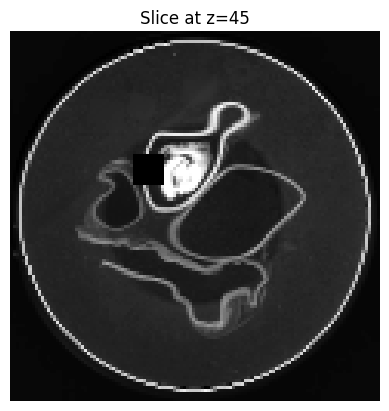
To compare the original and processed sub-volumes being inserted back into the image, we can visualize them side by side.
from data_helpers import plot_slice

plot_slice(original_array, z_idx=45)
plot_slice(changed_array, z_idx=45)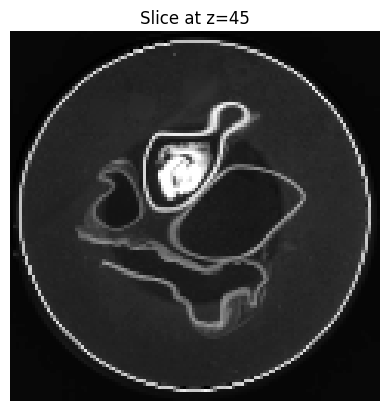
Conversion Format Comparison
The following table summarizes some other commonly used filed formats that have Python tools available for saving NumPy arrays to:
| Format | Tool/Library | Advantages | Disadvantages | Open Source Viewers | Recommended Use Cases |
|---|---|---|---|---|---|
| TIFF | imageio | • Widely supported • Preserves bit depth • Good for microscopy workflows • Fast read/write | • Limited metadata support • Large file sizes • No compression by default | Napari, ImageJ, Fiji | General imaging workflows, microscopy data, when broad tool compatibility is needed |
| NIfTI | nibabel | • Medical imaging standard • Rich metadata (orientation, spacing) • Good compression • ITK-SNAP, FSL, AFNI support | • Medical imaging specific • Limited to certain data types • Complex coordinate systems | ITK-SNAP, FSL, AFNI | Medical imaging analysis, neuroimaging studies, when spatial metadata is critical |
| DICOM | pydicom | • Clinical standard • Extensive metadata • Patient/study information • Universal medical viewer support | • Complex format • Large overhead • Requires many mandatory fields • Slow for large volumes | OsiriX, RadiAnt, Horos | Clinical workflows, when patient metadata is required, for regulatory compliance |
| NumPy | numpy | • Direct array format • Fast loading • Preserves exact data • Python native | • No metadata • Large file sizes • Python ecosystem only | None (Python only) | Quick prototyping, Python-only workflows, temporary data exchange |
Both the NIfTI and DICOM sub-volumes can be viewed in open-source viewers such as ITK-SNAP (see ITK-SNAP site).